On a staging copy, compare the same mobile page with the announcement off and on, opening the menu in each state. If navigation still fails with the notice off, investigate the underlying menu issue rather than bar settings.
If the live menu is blocked, place the essential notice and any details link in reachable, normal-flow content: ordinary page content that occupies its own space and scrolls with the page. Then disable the obstructing fixed placement through existing controls. Adding a duplicate notice alone will not restore navigation.
Continue diagnosis on staging; do not start by raising z-index.
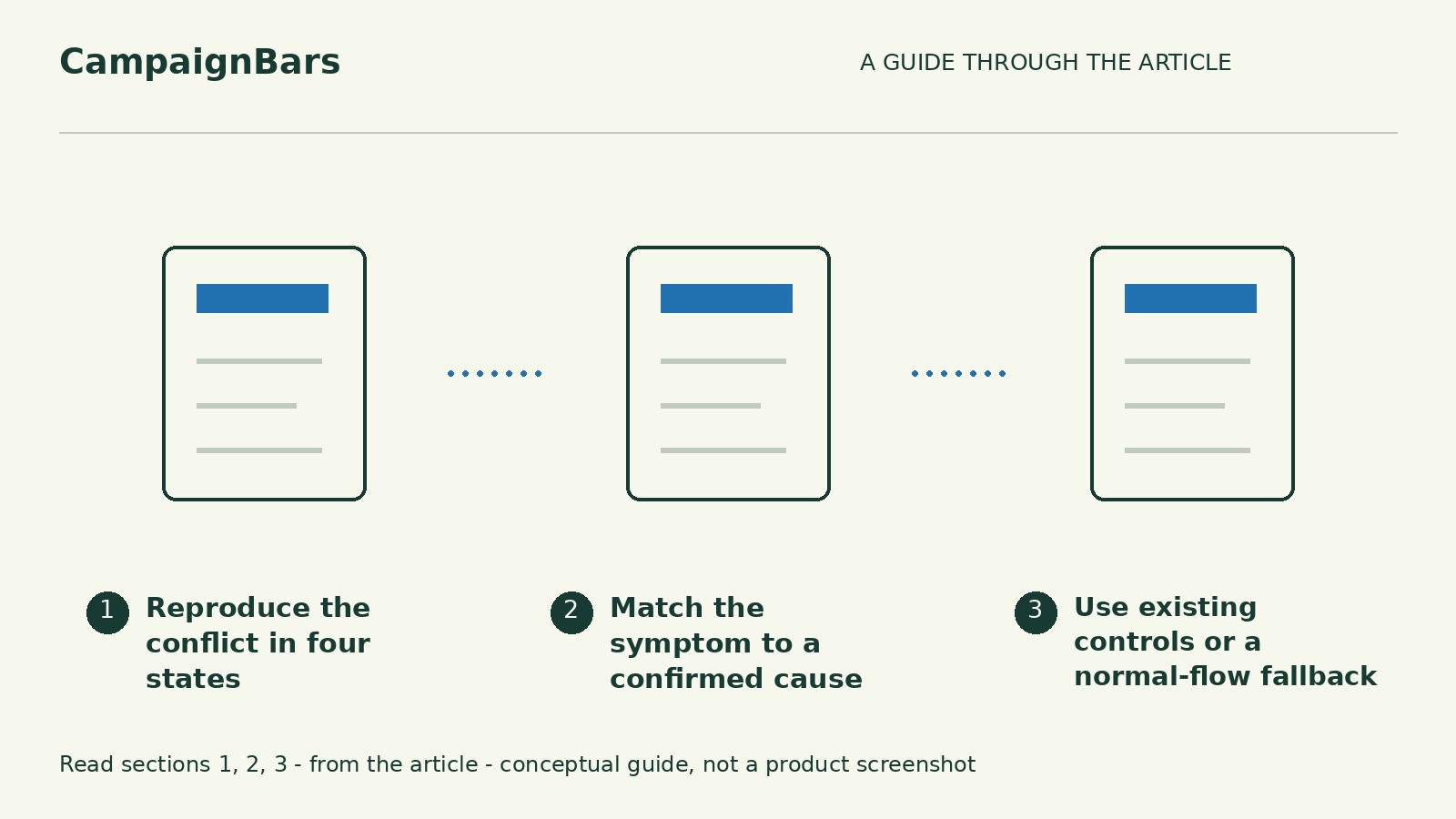
Reproduce the conflict in four states
Use an affected page with the live notice text and header settings. Disable the notice rather than making it transparent, and confirm it disappears. Test logged out first: the WordPress admin toolbar can change the layout. Keep viewport, scroll position and login state unchanged between comparisons.
- Notice off, menu closed: can you see and activate the toggle?
- Notice off, menu open: are the drawer and links reachable?
- Notice on, menu closed: is the toggle or its tap area covered?
- Notice on, menu open: what overlaps, disappears or stops responding?
If a state cannot be reached, record the blocking action rather than forcing it.
Repeat at the page top and after scrolling into any sticky-header state. Check a real phone as well as a responsive preview. Record the first failing action and capture the open-menu states.
Match the symptom to a confirmed cause
These symptoms are clues, not proof. Have a developer confirm rendered positions and parent-container styles before editing CSS.
Missing clearance
A fixed-position element does not itself reserve space in normal page flow. If overlap grows when text wraps, compare the notice’s rendered height with the header’s clearance.
If confirmed: adjust the layout to accommodate wrapped and enlarged text, rather than guessing a padding value.
Layer order and intercepted taps
If the drawer occupies the right area but sits behind the notice, inspect stacking contexts: groups layered as units. A transformed parent or one with opacity below 1 can create a separate context, so increasing only the drawer’s z-index may not raise that group.
If confirmed: correct the relevant parent layering or drawer placement. Include visible-but-untappable links in the developer handoff: an invisible overlay may be receiving the taps.
Clipping
If the drawer ends abruptly at a container edge, inspect overflow settings on the containers enclosing it. If confirmed: adjust the responsible container or relocate the drawer while preserving menu behavior. Increasing z-index cannot undo clipping; do not remove overflow restrictions site-wide.
Use existing controls or a normal-flow fallback
Start with available theme, header or block controls and change one setting at a time. If you cannot identify the responsible layer or container, send the comparison to the theme maintainer instead of stacking CSS overrides.
An open drawer may intentionally cover the announcement, provided the notice is reachable again when it closes. Shorten nonessential wording if useful, but retain material conditions and readable type.
If repair is not ready, place an ordinary content block near the top of relevant entry pages, reachable without the menu. Disable fixed mobile placement if existing controls allow it; otherwise remove the fixed notice during repair. This is content/theme editing, not an assumed announcement-plugin feature.
Hypothetical example: At a 360 CSS-pixel viewport, the notice wraps to three lines and covers the toggle; navigation works with it off. Inspection confirms that reserved clearance accommodates only one line. If a theme control can provide clearance for wrapped and enlarged text, test it. Otherwise, use the normal-flow fallback pending maintainer repair. Wrapping was a clue; inspection established the cause.
Sample verification record for this hypothetical fallback:
- Conditions: News page; desktop Chrome responsive preview; 360 CSS pixels; default text size; page top; logged out; consent notice dismissed.
- Before: Fixed notice on, menu closed; toggle blocked.
- After: Fixed notice off, menu closed then open; toggle, drawer and links usable; in-page notice reachable.
- Untested: Keyboard focus, enlarged text, consent controls and a real phone.
- Next: Complete those checks and record the results.
If you already use CampaignBars Free, the observed native-account 1.2.2 edition supports offsets and shorter mobile wording. These may help a diagnosed spacing issue, but do not provide automatic collision avoidance, theme repair or an accessibility guarantee. Underlying header and menu repairs remain theme work.
Retest and keep a verification record
Start these manual checks on staging. Keep the live fallback until the repair passes. These checkboxes are temporary reminders, not automated tests or saved evidence.
If consent opens a modal dialog, test its controls first and navigation after closing it; intentional blocking behind a modal is not itself a collision. These are targeted regression checks, not a full accessibility audit.
Use the sample record as a template in your own notes. Save an entry for each tested state, including the action, results for the toggle, drawer, links and visible focus, and anything still untested.
Test the first affected page and save its record. If a check fails, leave the fixed placement disabled, retain the in-page notice and send the record and failure screenshot to the theme maintainer.